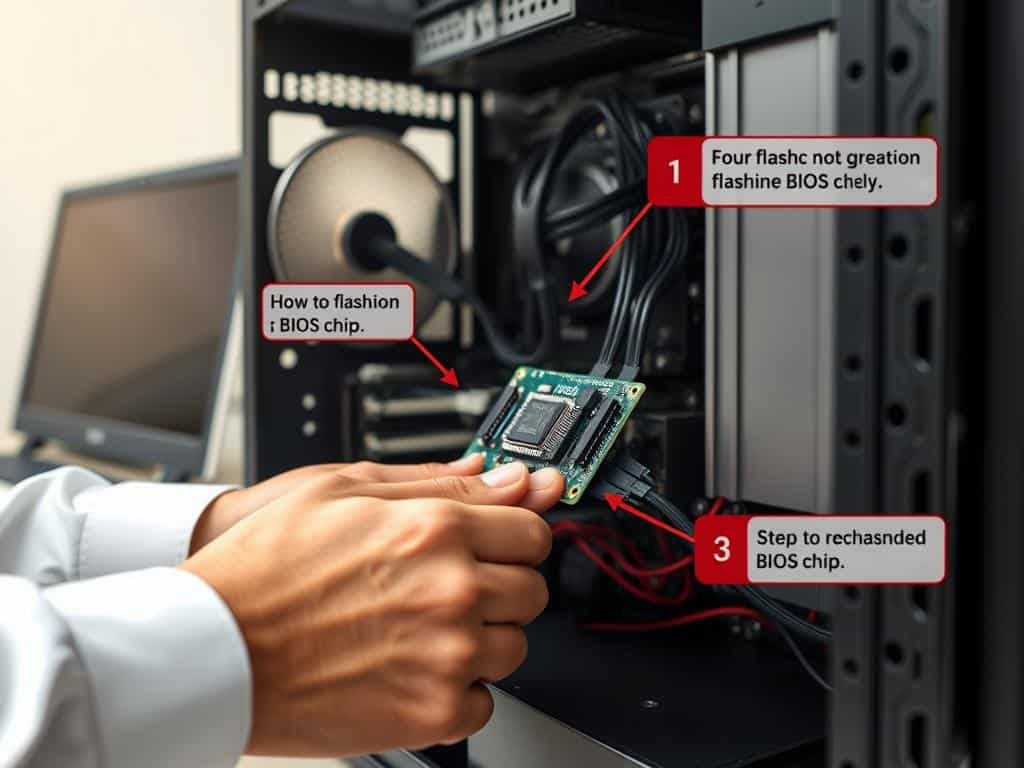
Every tech enthusiast has that moment of truth. You’ve built your dream computer, but it needs a BIOS update for new software. I faced this dilemma with my own setup. I learned about the importance of BIOS updates for performance and compatibility.
One small mistake could risk my entire system. This experience taught me the critical importance of BIOS. It’s not just about updates; it’s about keeping your machine running smoothly. In this guide, I’ll show you how to flash your BIOS safely. I’ll share BIOS tips to help you avoid risks.
Key Takeaways
- Understanding BIOS is key for optimal computer performance.
- Flashing BIOS can improve compatibility with new hardware.
- Following manufacturer guidelines is vital to avoid corruption.
- Preparation before updating is key for a smooth process.
- Monitoring the update can help in troubleshooting issues.
Understanding BIOS and Its Importance
To understand BIOS, start with its definition. The Basic Input/Output System, or BIOS, is key in booting up a computer. It connects the operating system with hardware components. This software makes sure all devices work together when you turn on your machine.
What is BIOS?
BIOS is firmware on a chip on the motherboard. It starts up your computer and checks if hardware works. It gets the system ready for the operating system. How well BIOS works affects your computer’s performance and reliability.
Difference Between BIOS and UEFI
UEFI (Unified Extensible Firmware Interface) is a newer system firmware. It’s faster than BIOS and supports large storage devices. UEFI also has Secure Boot to protect against malware during startup. Knowing these differences helps with system upgrades and settings.
When Should You Update Your BIOS?
Updating BIOS is needed in certain situations. I update when there are hardware issues, system failures, or to improve performance. But, don’t update BIOS regularly unless the manufacturer suggests it. Think carefully before updating to make sure it’s right for your computer.
How to Flash BIOS Safely
Flashing BIOS might seem scary, but it’s easy with the right steps. First, I need to know my motherboard’s make and model. This tells me which BIOS version I should use.
Identify Your Motherboard Manufacturer and Model
To find this info, I often use Command Prompt or System Information. In Command Prompt, typing “wmic baseboard get product, Manufacturer” gives me the details fast. Or, in System Information, I check the “System Summary” for an overview. This is key to avoid problems.
Download the Latest BIOS Update from the Manufacturer
Once I know my motherboard, I go to the manufacturer’s support page. I pick the latest BIOS update for my model. Being careful here helps prevent issues during the flashing BIOS process.
Prepare Your USB Drive for BIOS Update
Then, I prepare my USB drive. I format it to FAT32, which most BIOS setups can use. It’s important to clear any data on the drive. I right-click on the USB drive in “This PC” and choose “Format.” This makes the installation smoother.
Accessing the BIOS Menu
Lastly, I access the BIOS menu. I press a key like F2, Del, or Esc during boot. For Windows 10, I go to “Update & Security” in Settings and then “Recovery.” Knowing the right key saves time and gets me ready for the update.
Steps to Successfully Flash BIOS
Flashing the BIOS might seem scary at first. But, once you know the steps, it’s easier. This guide will help you through the key steps. You’ll learn how to install the BIOS update, watch the process, and do checks after.
Installing the BIOS Update
To start, go to the BIOS menu to begin the update. Make sure your USB drive, with the BIOS update file, is ready and plugged in. Choose the update file from the menu and confirm the installation. Be patient during this step. Try not to interrupt the process, as it can cause big problems.
Monitoring the Update Process
Watch the progress indicators closely during the update. The BIOS flashing might take a few minutes. Don’t turn off or restart your computer until it’s done. A successful BIOS update is key for your system’s stability and performance.
Post-Installation Checks and Troubleshooting
After the update, reboot your computer and go back to the BIOS. Check the version number to see if the update worked. If you run into problems, you might need help troubleshooting. Issues like boot failures or incompatibilities can happen. Keep a list of possible fixes based on your hardware and settings.
Conclusion
In this BIOS update summary, I’ve covered the key points of safely updating your BIOS. Knowing how to do this right helps avoid risks and boosts your system’s performance. BIOS updates can fix problems and improve how your system works, but they should only be done when really needed.
By carefully following the steps, I can update my system’s firmware safely. Knowing about my BIOS version and updates helps me have a better computing experience. It’s true that problems are rare if you follow the instructions well.
Being proactive and knowing about BIOS management helps keep my computer running smoothly. This knowledge makes future BIOS updates easier to handle.
